Dashboard Tour — What Lives Where
A 60-second tour of your TheServerLicense.com dashboard. After reading this, you'll know exactly where to click for every common task — ordering, paying, managing licenses, checking invoices, opening a ticket.
The layout
Every page has the same three zones:
- Left sidebar — main navigation (Dashboard, Licenses, Renewals, Orders, Wallet, Invoices, Tickets, Store)
- Top bar — your profile (top-right) + light/dark mode toggle
- Main area — the page you're viewing
The sidebar is always visible on desktop, collapsible on mobile.
1. Dashboard — your account at a glance
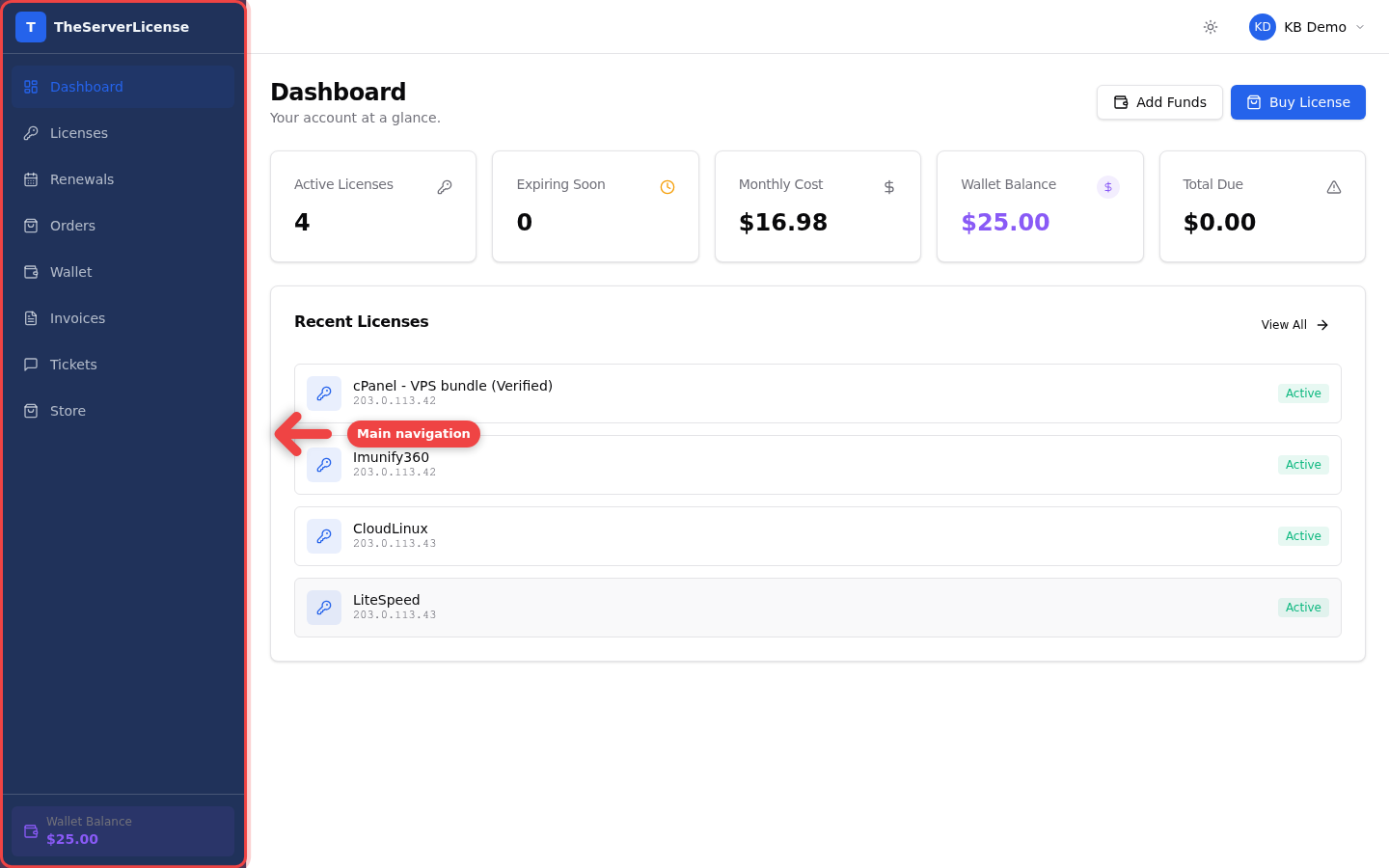
The Dashboard is the landing page after login. It gives you five stat cards across the top and a Recent Licenses list below.
2. The five stat cards
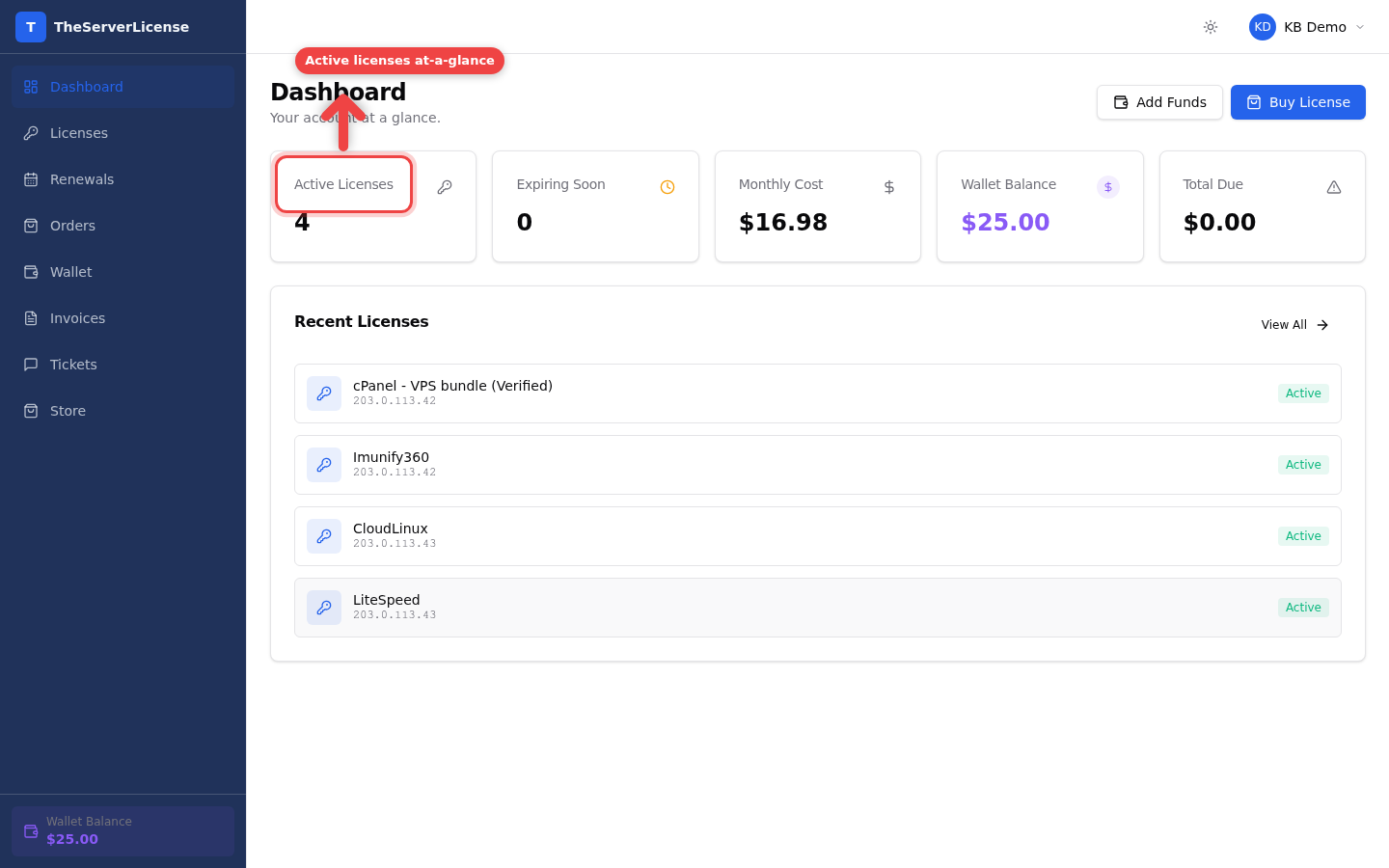
- Active Licenses — how many licenses are currently active on your account
- Expiring Soon — licenses expiring within 7 days (act before they suspend)
- Monthly Cost — sum of your active monthly renewals
- Wallet Balance — available credit for instant purchases
- Total Due — outstanding invoices waiting for payment
3. Wallet Balance — pay faster, save more
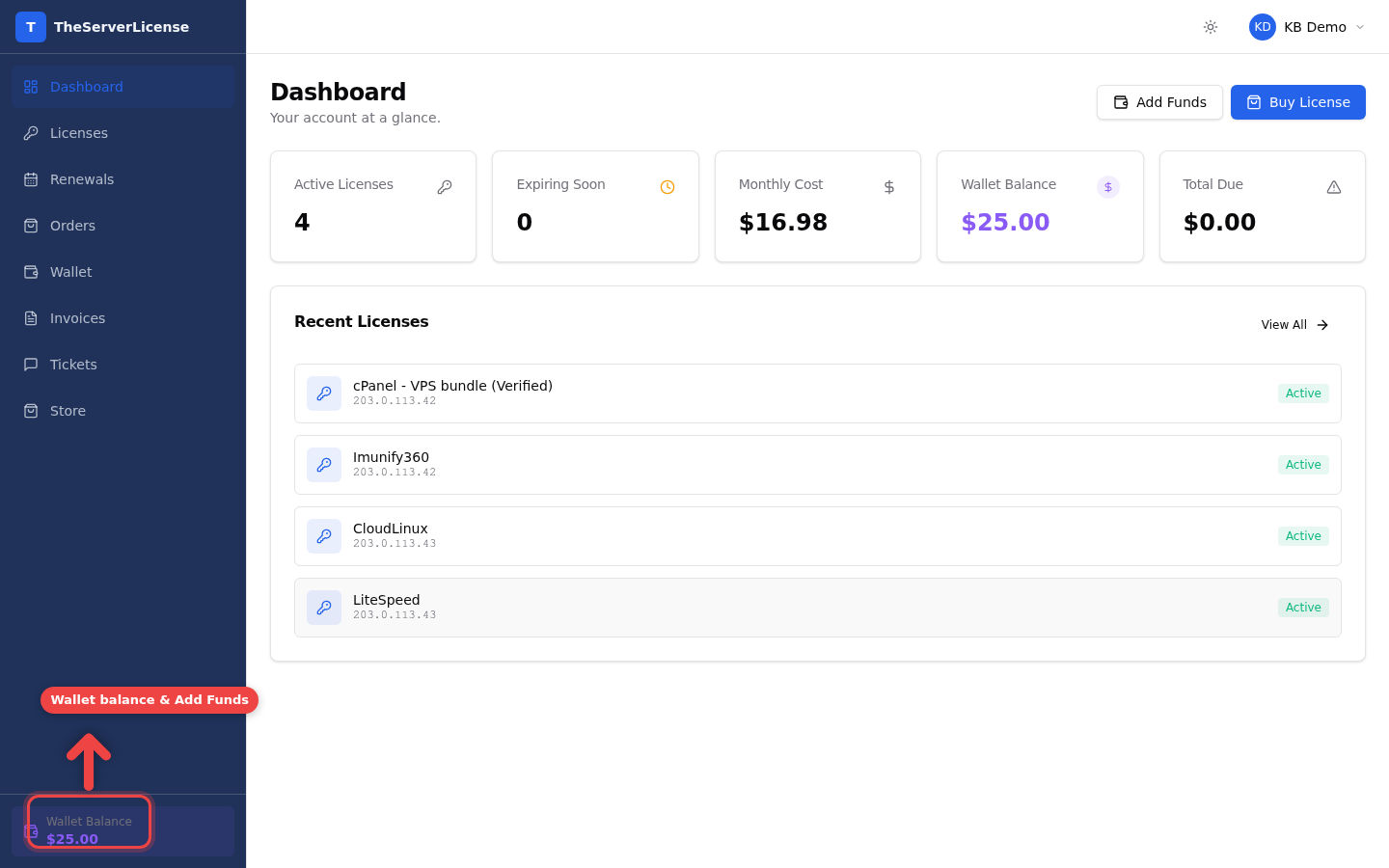
The Wallet Balance card shows your available credit. Click Add Funds to deposit and earn up to 25% bonus on deposits over $100 — see How to deposit to wallet.
4. Licenses — every license you own
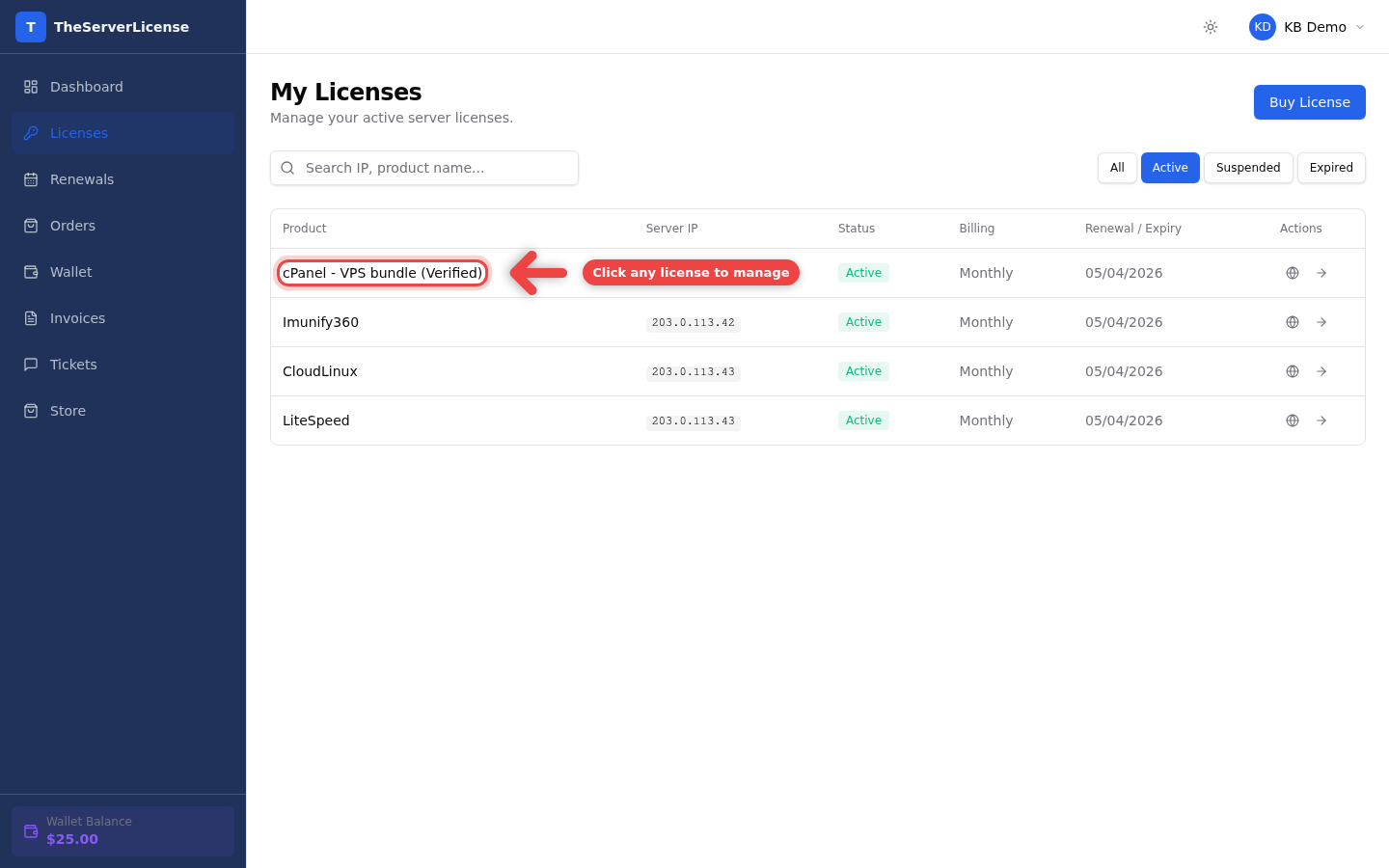
The Licenses page in the sidebar lists every license you own. Click any row to open its detail page.
5. License detail — manage one license
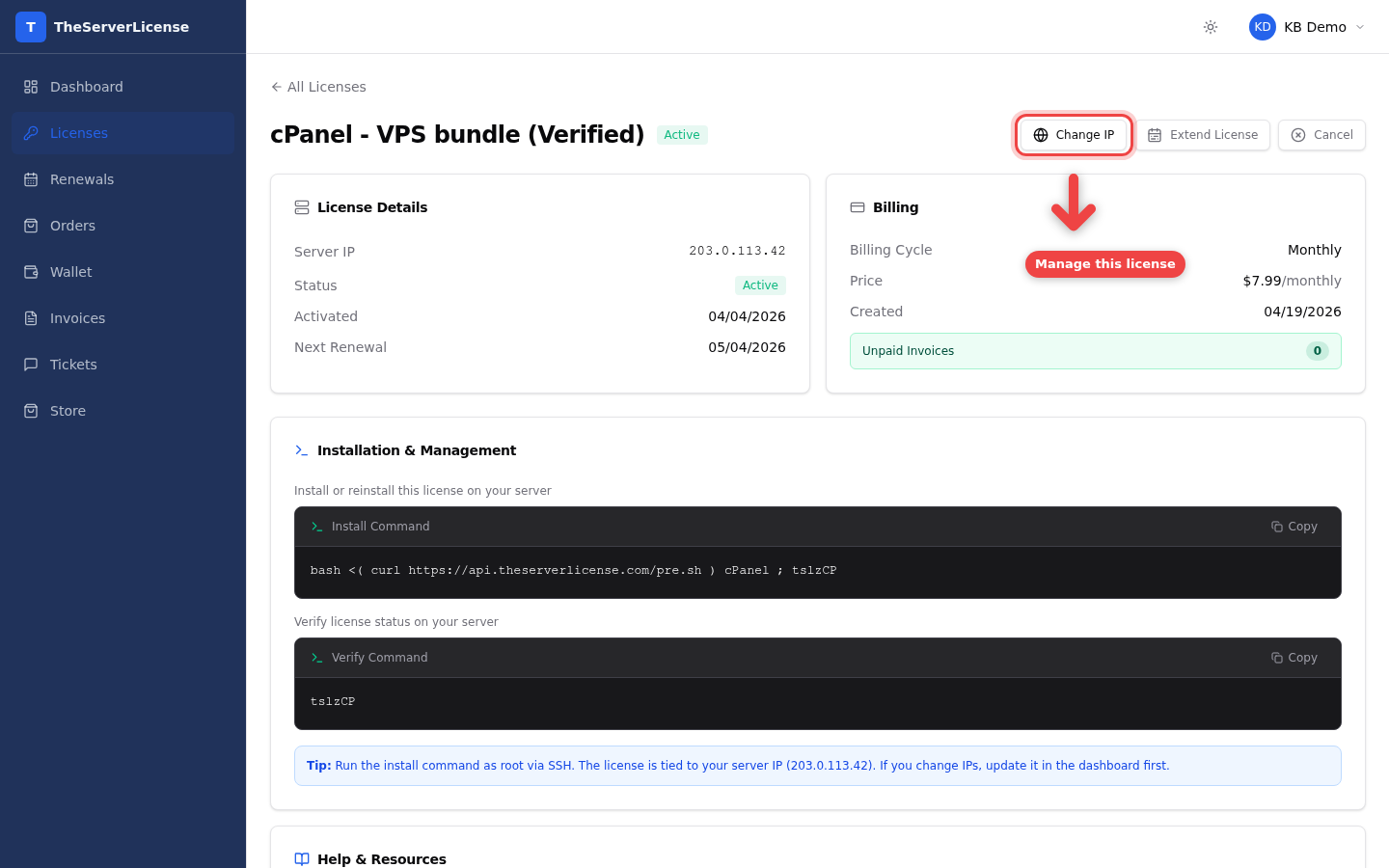
The license detail page has every action you'll ever need: Change IP, Extend License, Cancel, plus the exact install command ready to copy.
Watch the full tour
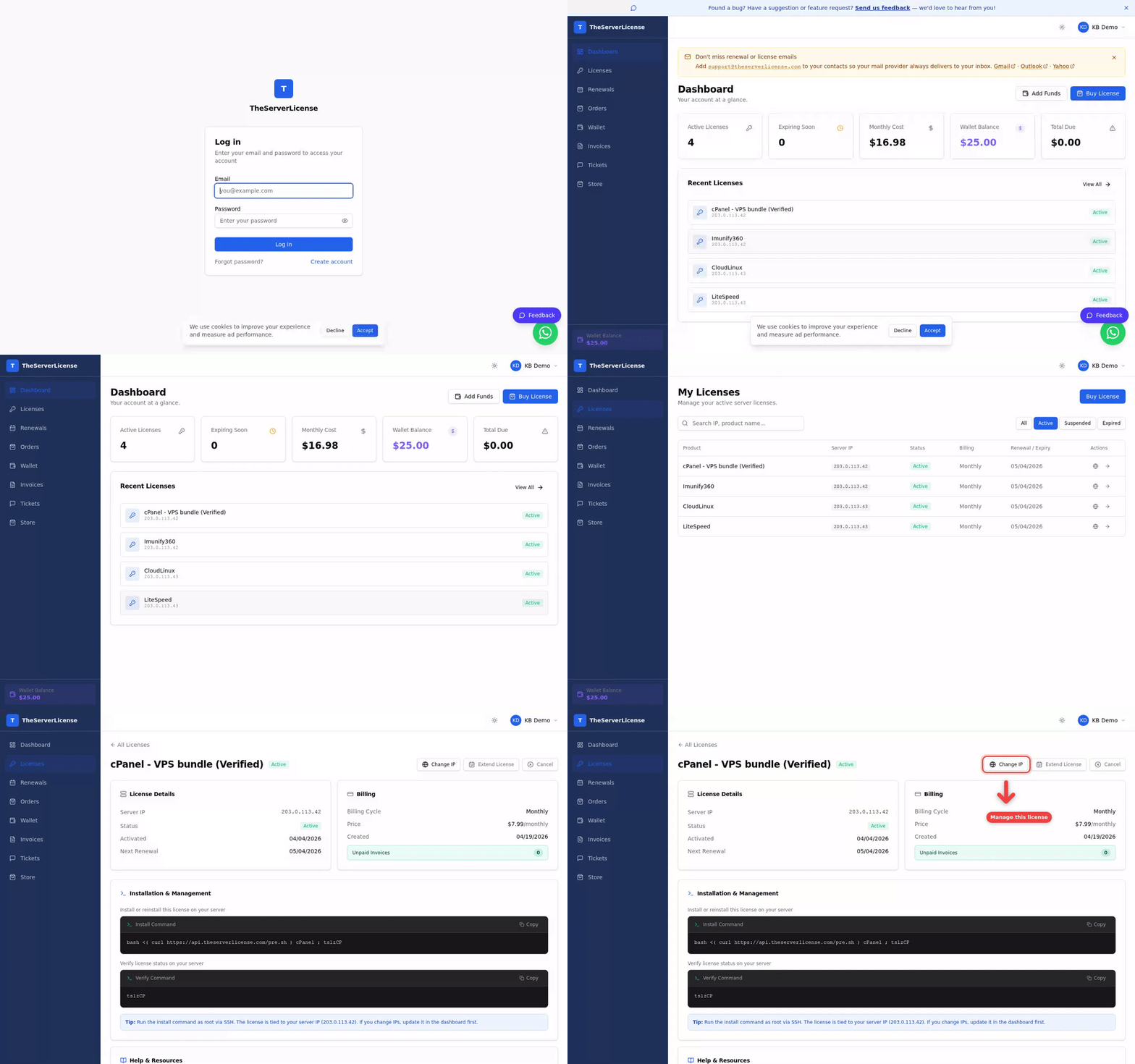
Section-by-section — what each sidebar link does
| Section | What you do there | Related guide |
|---|---|---|
| Dashboard | Quick overview of active licenses, wallet, expiring soon | This page |
| Licenses | List + manage every license (change IP, cancel, reinstall) | Change license IP |
| Renewals | Upcoming renewal dates and costs | How auto-renewal works |
| Orders | Every order you've placed, with status (pending/paid/failed) | How to order a license |
| Wallet | Deposit, pay from balance, auto-topup settings | Deposit + bonus |
| Invoices | Paid and unpaid invoices, with PDF downloads | — |
| Tickets | Open support tickets or view past conversations | — |
| Store | Browse products, start a new order | How to order a license |
Frequently asked
What's the difference between Licenses and Orders?+
Orders are purchase events (one order = one trip through checkout). Licenses are the active entitlements that result from paid orders. One order often creates multiple licenses if you added several products to the cart.
Why does the dashboard show "Expiring Soon" as 0 when I have a license ending next week?+
Expiring Soon counts licenses whose current_period_end is within 7 days AND don't have a paid renewal invoice yet. If your renewal invoice is already generated and paid (wallet auto-renewal), the license is already safe — nothing expiring.
I see "Total Due" — does it include future-period invoices I haven't been billed for yet?+
No. Total Due is what's currently unpaid — overdue + current-period invoices. Future periods won't generate invoices until 7 days before the due date.
The Monthly Cost feels higher than my actual monthly spend. Why?+
Monthly Cost sums the normalized monthly price of every active license, regardless of billing cycle. A $99 annual license counts as $8.25/month there. If you pay annually, your cash-out rhythm is different but the monthly view helps you compare total cost to peers on monthly plans.
Where do I change my account email or password?+
Click your name/avatar in the top-right → Profile. Password change is in the same Profile page. Two-factor auth (2FA) and trusted devices also live there.
Can I switch to dark mode?+
Yes. Click the sun/moon icon in the top bar to toggle. Your preference saves per-browser.
Where's the mobile version?+
The same URL works on mobile — the sidebar collapses into a hamburger menu. Every feature works; the stat cards stack vertically instead of side-by-side.
How do I log out?+
Click your name/avatar in the top-right → Sign Out.
Next steps
- How to order a license — your first purchase
- How to deposit to wallet — unlock up to 25% bonus
- How to change license IP — moving servers
- How to cancel a license — self-serve cancellation
Lost? Email [email protected] — reply within a few hours.