How to Apply a Promo Code at Checkout
Got a promo code for TheServerLicense.com? Here is how to apply it in under 30 seconds — the discount shows up live in your order total before you pay.
What a promo code does
- Reduces your order total by a percentage (e.g. 10% off) or a fixed amount (e.g. $5 off).
- Applies immediately to every product in your cart — no page reload.
- Stacks with wallet balance, long billing-cycle discounts, and bundle pricing (unless the code itself is marked non-stackable).
Step-by-step
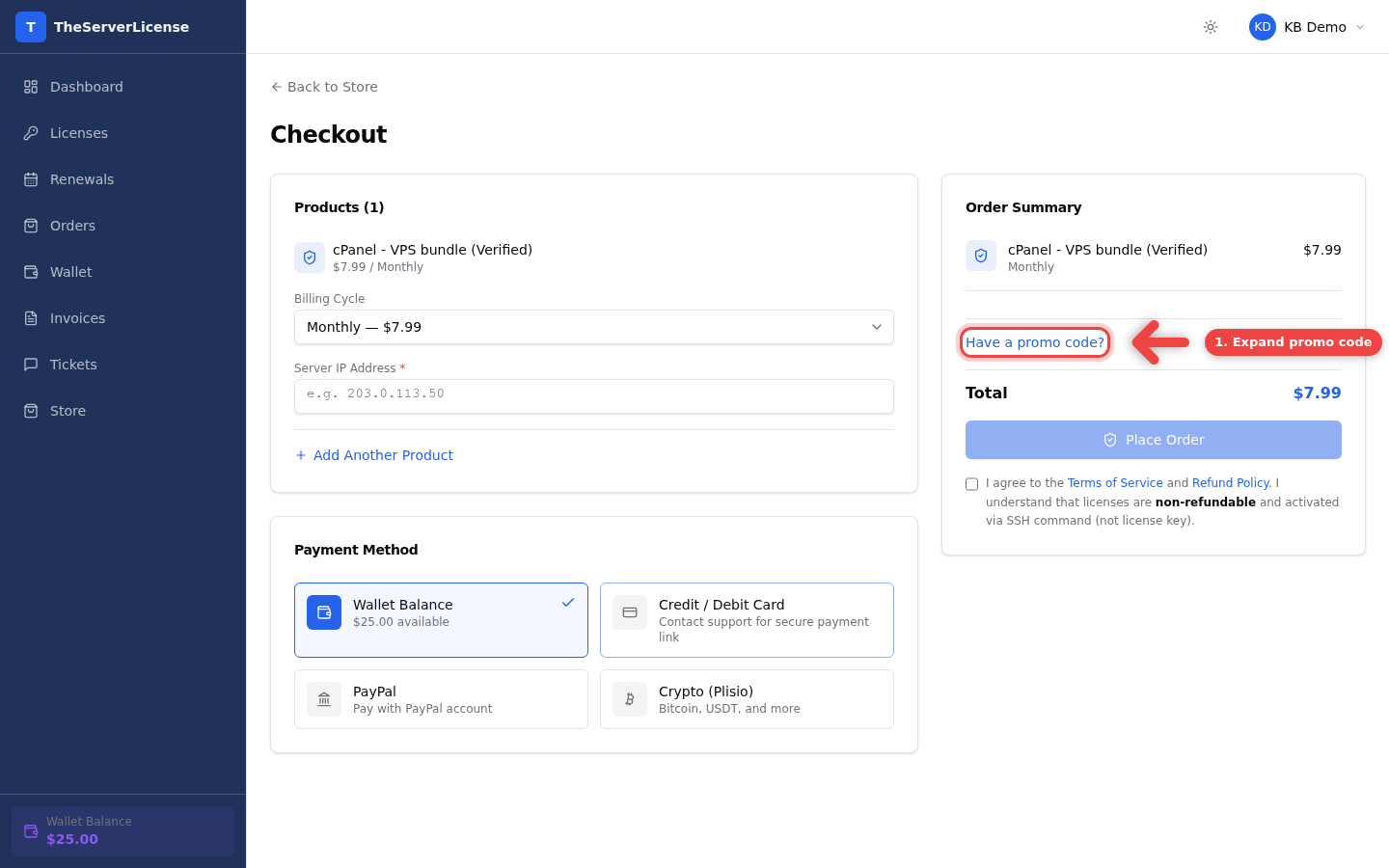
1. Go to checkout and expand "Have a promo code?"
On the Checkout page, the right sidebar shows your Order Summary. Below the subtotal, click Have a promo code? to reveal the input field.
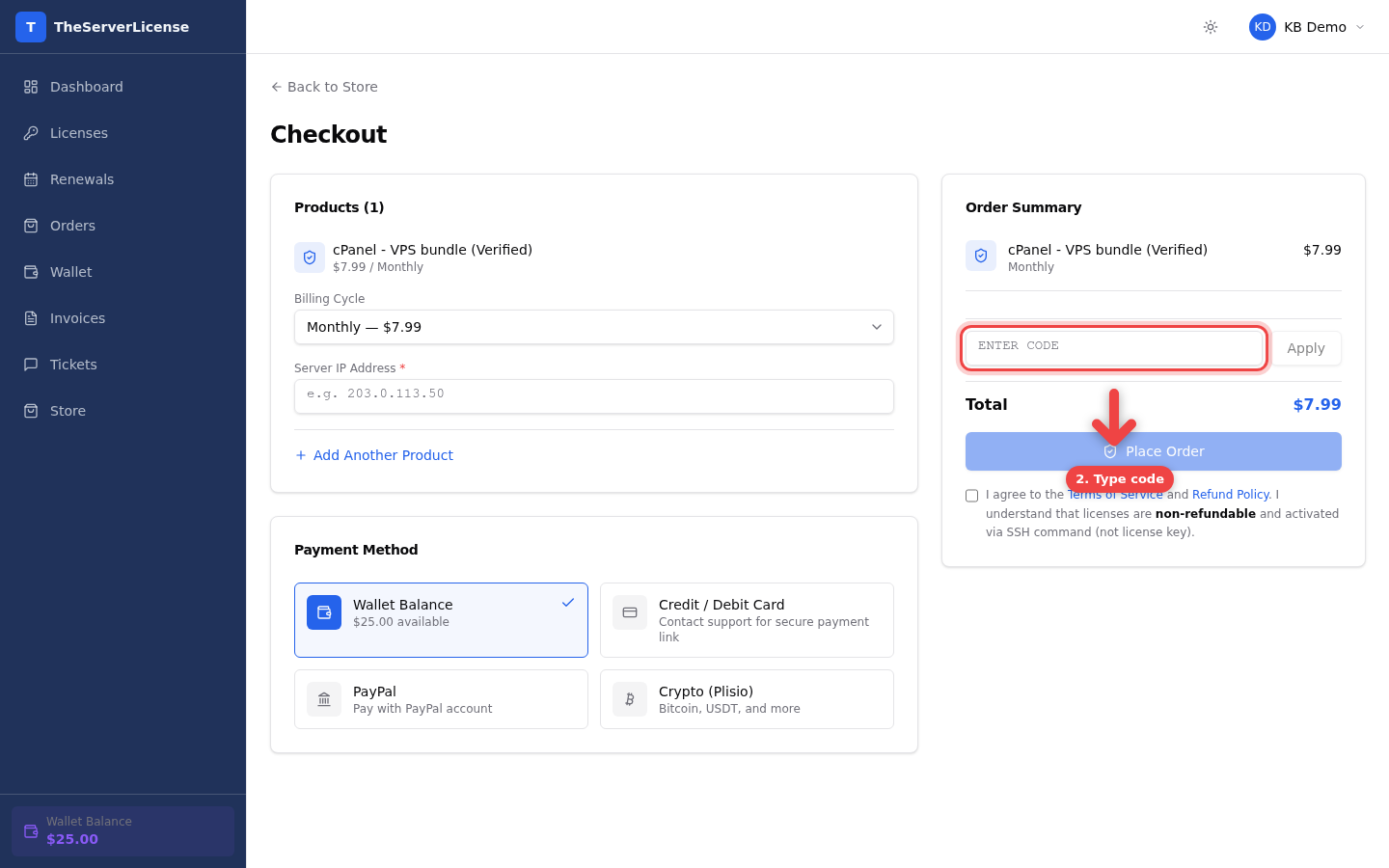
2. Paste or type your code
The input field accepts any valid promo code in uppercase — don't worry, we auto-uppercase as you type.
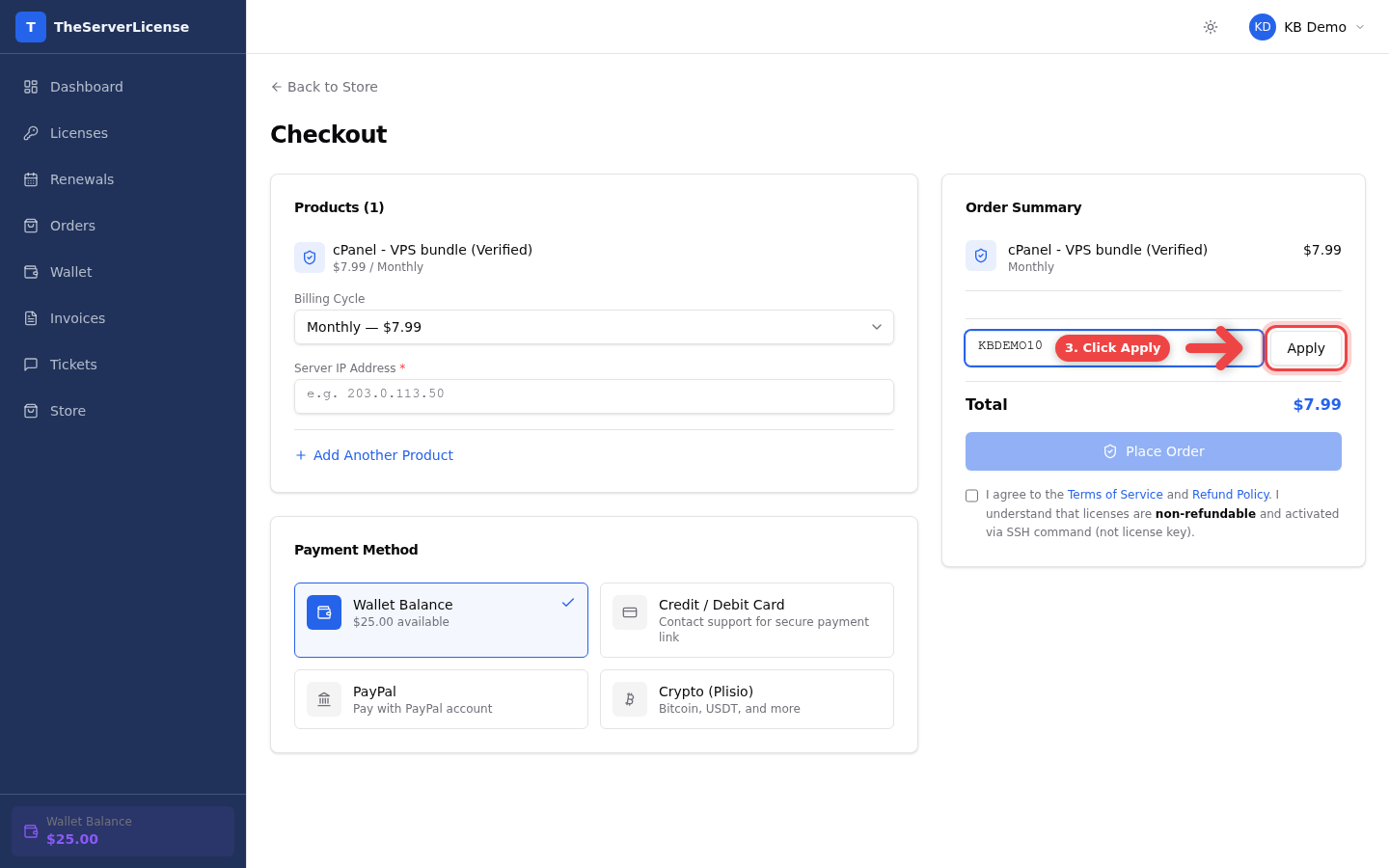
3. Click Apply
The Apply button validates the code instantly. If valid, the discount line appears immediately below the subtotal and the Total updates live.
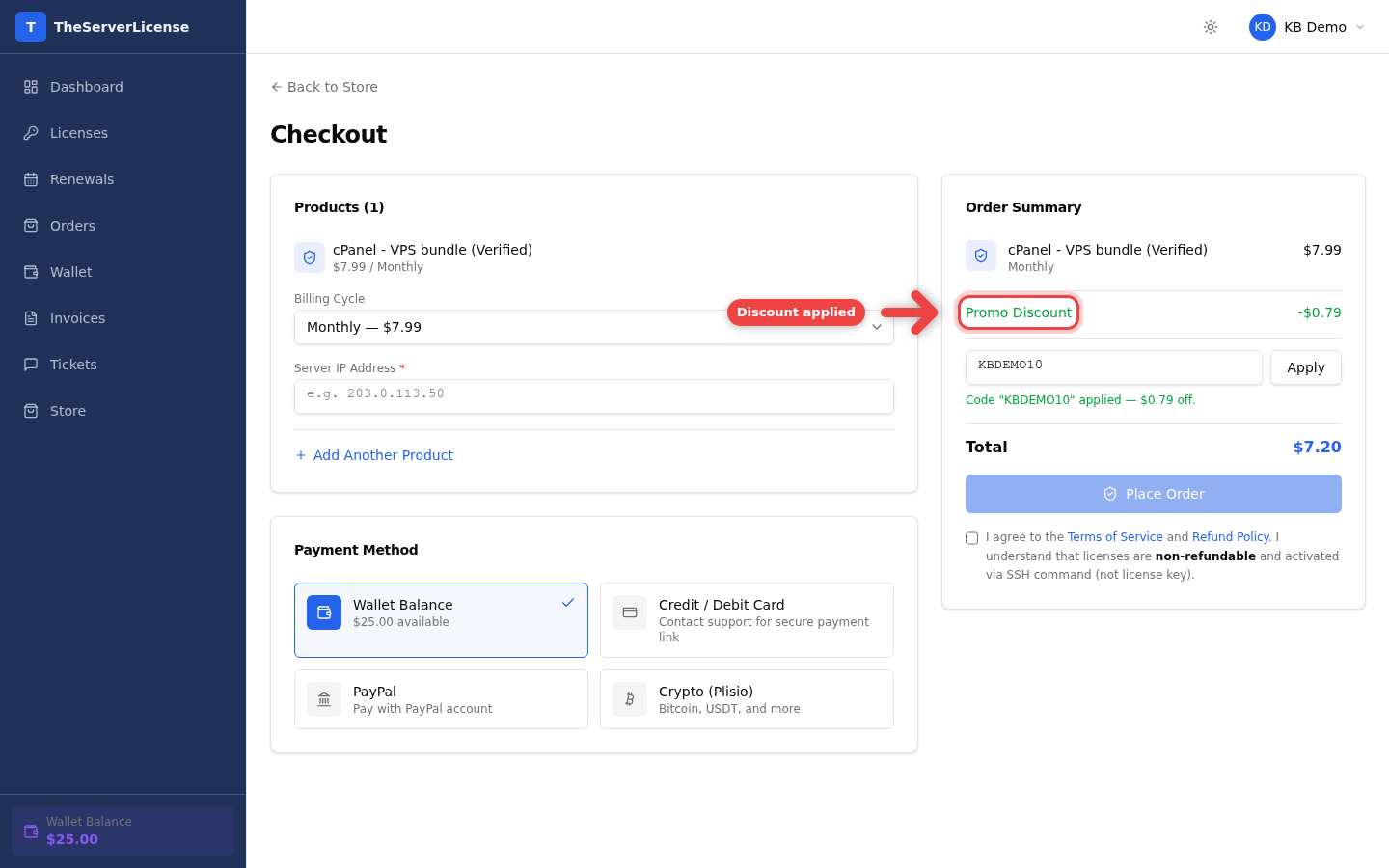
4. Confirm the discount is applied
A green confirmation message reads "Code X applied — $Y off". In the Order Summary, you now see Promo Discount on a separate line and the Total drops by that amount.
Watch the full flow

Want to stack a promo code with our biggest discounts?
Promo codes combine with two other savings levers on TheServerLicense.com:
| Layer | How it saves | Where to apply |
|---|---|---|
| Promo code | Fixed % or $ off order total | At checkout (this guide) |
| Longer billing cycle | Up to 30% off vs monthly | Billing Cycle dropdown at checkout |
| Wallet bonus | Up to 20% free credit on deposits ≥ $100 | Deposit first, then pay from wallet |
See How to get the cheapest cPanel license for the fully stacked example — all three levers together reach ~48% savings vs sticker price.
Frequently asked
Where do I find promo codes?+
Check your email (we send codes to subscribers during promotions), the site banner on theserverlicense.com, and the store front page. Re-sellers on our partner program also receive codes periodically.
I have multiple codes — can I use them together?+
Only one promo code per order. If you have multiple, pick the one that saves you the most — we show the discount preview before you confirm.
The code shows "invalid" — what do I check first?+
Three common causes:
- Expiry — codes have start/end dates; try a newer one
- Minimum order — some codes require a minimum subtotal
- Per-user limit — each customer gets a limited number of uses, usually 1
Does the code apply to renewals too?+
Usually no. Promo codes apply at first-time order unless the code specifically says "renewals eligible." Renewals get discounted through longer billing cycles or wallet bonus instead.
The discount is smaller than I expected — why?+
Percentage codes apply to the eligible subtotal, not the bundled taxes or upgrade fees. If you see a surprise, hover the Total for the breakdown.
Can I apply the code after placing the order?+
No. Codes must be applied before clicking Place Order. Once the order is created, the price is locked. If you forgot, cancel the pending order and re-create it with the code applied.
Does the code work with wallet payment?+
Yes. The promo reduces the amount deducted from your wallet. If your wallet has enough credit after the discount, the order pays instantly.
My code is expired but I really want to buy — what now?+
Reach out to [email protected] with the code and we may be able to extend or issue a replacement, especially if you're a returning customer.
Next steps
- How to order a license — full checkout walkthrough
- How to deposit to wallet — stack wallet bonus with your promo code
- Cheapest cPanel license — all three savings levers in one order
Questions? Email [email protected] and we'll get back within a few hours.